Install WordPress on local computer

How to setup WordPress on your local computer

1st install Apache, MySQL and PHP

  • First you will need to install Apache web server, MySQL and PHP. I did this by installing XAMPP from www.filehippo.com
  • The installation was very simple. All you had to do is click Next. Leave all the default selections. In the beginning of the installation it warns you not to install it in the Program Files folder because there will be security restrictions that will cause problems, so it by default is installed in the C:\XAMPP folder.
  • After it is installed you will have a new program folder called XAMPP in your “All Apps” or “All Programs” list when you click Start. When ever you turn on your computer all of the programs that XAMPP installed will not be running. To start them, Apache Server and MySQL, you will need to start XAMPP Control Panel from the Start Menu.
  • To view the locally hosted website in your browser go to “localhost/wordpress”
  • To view some FAQ about XAMPP go to http://localhost/dashboard/faq.html
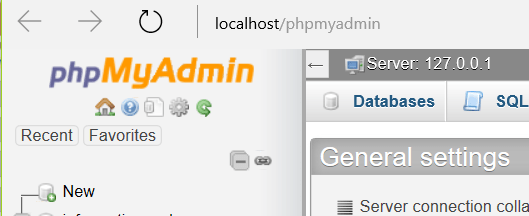
  • To view the MySQL admin, open your web browser and go to “localhost/phpmyadmin”. You can also go there from the XXAMPP control panel by clicking the Admin button next to MySQL.

2nd create MySQL database for WordPress

  • From the XAMPP Control Panel click the Admin button next to MySQL.
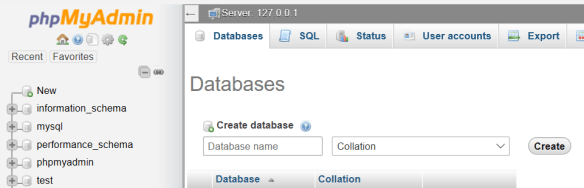
  • At the top click the “Databases” tabmysqlconfig1
  • In the “Database name” field type in a name for the WordPress database, like “wordpress”. Remember the exact way you spelled the database because you will need this for step 3 below.mysqlconfig2
  • Click “create” on the right.
  • You are done with this step.


3rd download and install WordPress

  • To download WordPress go to https://wordpress.org/download/
  • Extract the Zip file and paste the WordPress folder in c:\XAMPP\htdocs.
  • Then open the web browser and go to localhost/wordpress.
  • Select your language and click continue.
  • On the next screen click “Let’s Go”.
  • On the following screen in the “Database Name” field enter the exact name of the database you created earlier.
  • In the next two fields enter “root” for the username and leave the Password field blank, erase what is in there. The rest you can leave alone, click Submit.On the next screen click “Run the Install”
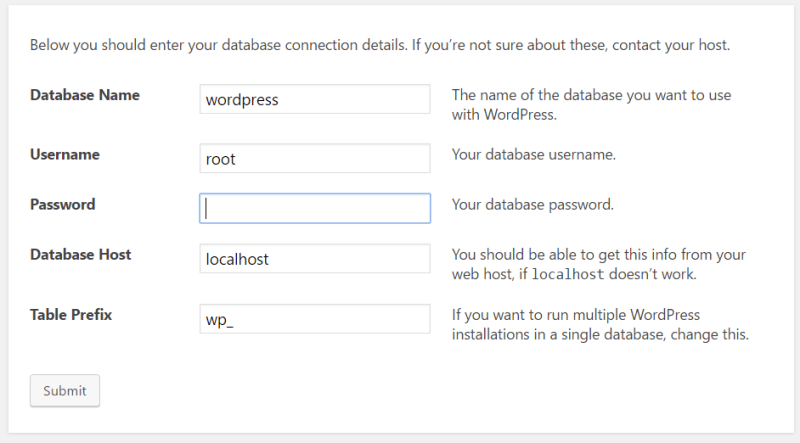
WordPress configuration screen

  • On the next screen give a name to your website, create a username and password that you will use to manage and edit your WordPress website.Then click “Install WordPress”

Manage and edit your WordPress site

To work on your WordPress website, in your browser go to “localhost/wordpress/wp-admin”

To view your local WordPress website go to “localhost/wordpress”

Don’t call that number and don’t believe the people who call you!

Message on your screen

If one of the following messages pop on your screen:

  • Your computer is infected with a virus and you are going to lose everything
  • The FBI has locked your computer because you have illegal software on your computer.
  • or anything similar to this.

then don’t call that number. Some criminal is trying to get your credit card or trying to sell you services you don’t need. Your Anti-Virus program is not going to display a number for you to call to get this problem fixed. This message came on your screen because you either:

  • Accidentally went to the wrong website and they are displaying bogus information trying to scare you. The solution is to shutdown or kill your browser(Chrome, Firefox, etc.) or restart the computer.
  • You accidentally downloaded a program which requires more help to remove.

Just don’t call that number!!! Call your local computer technician.

Cold Phone Call

Bogus computer call

Have you received a phone call from someone who claims to be from Microsoft and they what to show you that your computer is either infected or there are problems with your computer. They will show you things that are normal to find on all computer, even error messages. They will try to fool you by showing you some unique number after typing in some command. Please don’t believe them. Don’t give them access to your computer. They want to sell you services you don’t need. No legitimate company will bother to call you even if you have paid for their software. Your Anti-Virus company and Microsoft will not call you. They do not monitor your computer.

Bank or credit card company

This also goes for someone claiming to be from your bank or your credit card company. If the bank will actually call you they will never ask your your account number or the username and password for your account. If you don’t recognize who is calling then ask for their name, department and phone number and tell them you will call back. Then call your local bank branch or the number in the back of the credit card and tell them what happened. If it is legit, then they will forward you to the correct department.

IRS

They don’t call. They send letters. Don’t let the person on the phone threaten you.

Someone at your door

The same goes with someone knocking at your door, dressed in something that looks like the Gas or Electric company uniform. The Gas and Electric company do not need to enter your house if there is a problem. The shut off for both of those services is outside your house. Don’t open the door.