If you have a lot of tabs open in chrome, it is using a lot of RAM. One way to free up RAM is to bookmark all open tabs. This is good to do just in case so that you don’t lose your tabs. There is a plugin called OneTab  that can also help. It closes all open tabs that consolidates them on one tab as links. When you click on a link it reopens the tab and removes them from the OneTab, tab.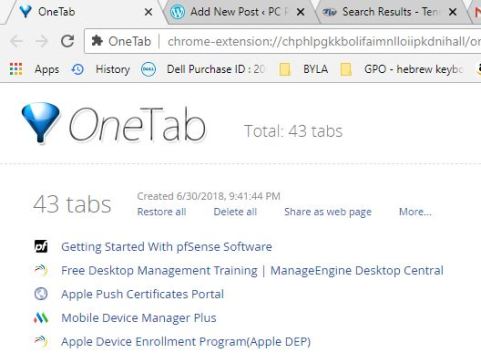
It remember what you had in OneTab after a restart of Chrome. But people say that when Chrome goes through an upgrade, all data in OneTab will be lost. So it is also good to bookmark your open tabs every so often.