If you can’t sign into the OneDrive app on your computer because after you enter your email address and click Next, the program closes and start over.
Do the following: (source Microsoft: Reset OneDrive – Microsoft Support)
| 1. On your computer keyboard, press the Windows key and R at the same time to open the Run dialog box. |  |
| 2. Copy or type wsreset.exe into the box then select OK.Note: A blank Command Prompt window will open and close briefly, then the Microsoft Store app will open. You can ignore these and close any unwanted windows. | 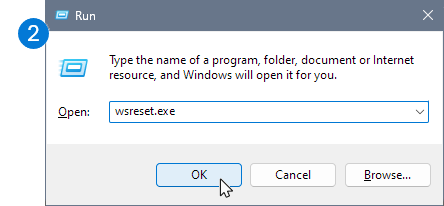 |
| If OneDrive is still not syncing, let’s continue with resetting the OneDrive sync app. | |
| 3. Press the Windows key and R again. |  |
| 4. This time copy the text below and paste it into the dialog window, then press OK. %localappdata%\Microsoft\OneDrive\onedrive.exe /reset | 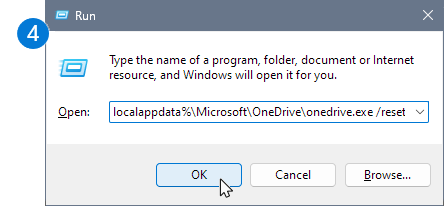 |
| 5. If you see a “Windows cannot find…” message, copy and paste the text below instead, then press OK. C:\Program Files\Microsoft OneDrive\onedrive.exe /reset | 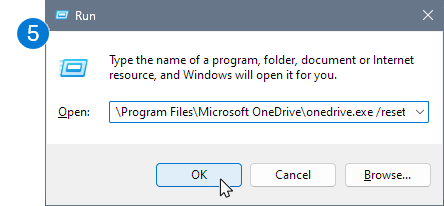 |
| 6. If you still see a “Windows cannot find…” message, copy and paste the text below instead, then press OK. C:\Program Files (x86)\Microsoft OneDrive\onedrive.exe /resetNote: If none of these steps work, you do not have the OneDrive sync app installed. Learn more. | 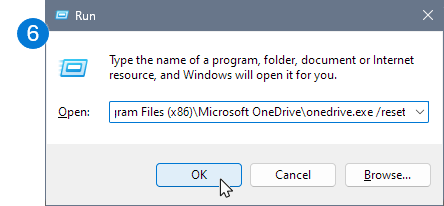 |
| 7. Manually restart OneDrive by going to Start , type OneDrive in the search box, and then click on the OneDrive desktop app. | |
 PC Paramedic-Computer Log