To reset the grace period, there are actually just 3 steps involved:
- Change permissions on the RCM > GracePeriod key
- Delete the “Timebomb” registry entry
- Reboot the server
you need to navigate to the following key location on your RDS server:
Computer\HKEY_LOCAL_MACHINE\SYSTEM\CurrentControlSet\Control\Terminal Server\RCM\GracePeriod
Change Permissions on the RDS GracePeriod key and delete the key
Open a command prompt, and type regedit. After you have navigated to the key documented above, right-click GracePeriod and select Permissions.
For obvious reasons, there are no default permissions on this key for even Administrators. So you have to first take ownership of the key before you can delete the timebomb value. Click the Advanced button on the permissions dialog box.
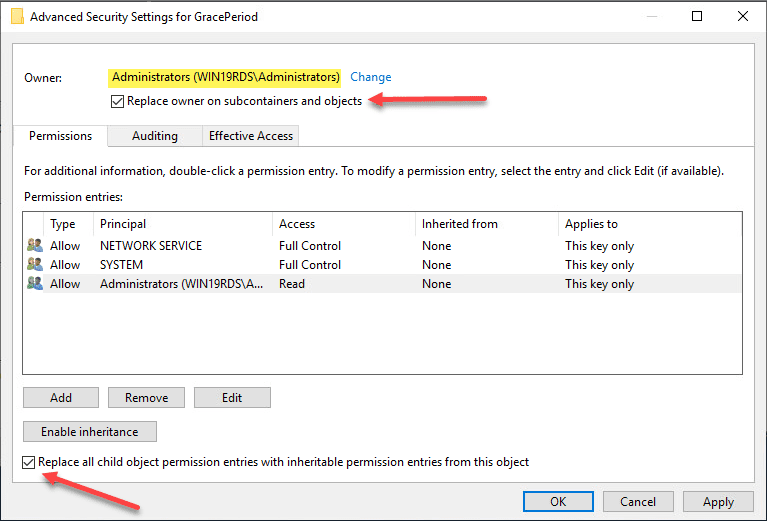
Click the Change button next to the Owner.
Here I have selected local administrators group as the owner of the key. However, you will want to choose whichever user/group you want to use to delete the registry key. Select the options to replace owners at the top and replace all child object permissions at the bottom. Click OK
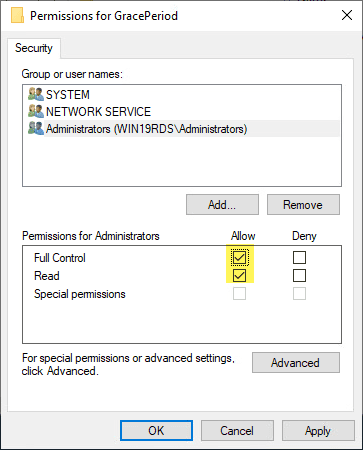
Now that we have changed ownership on the key, we can actually set permissions without getting permissions errors. Here I am granting administrators full control on the key.
On the right side of the Registry delete the entry “LSRTMT…”
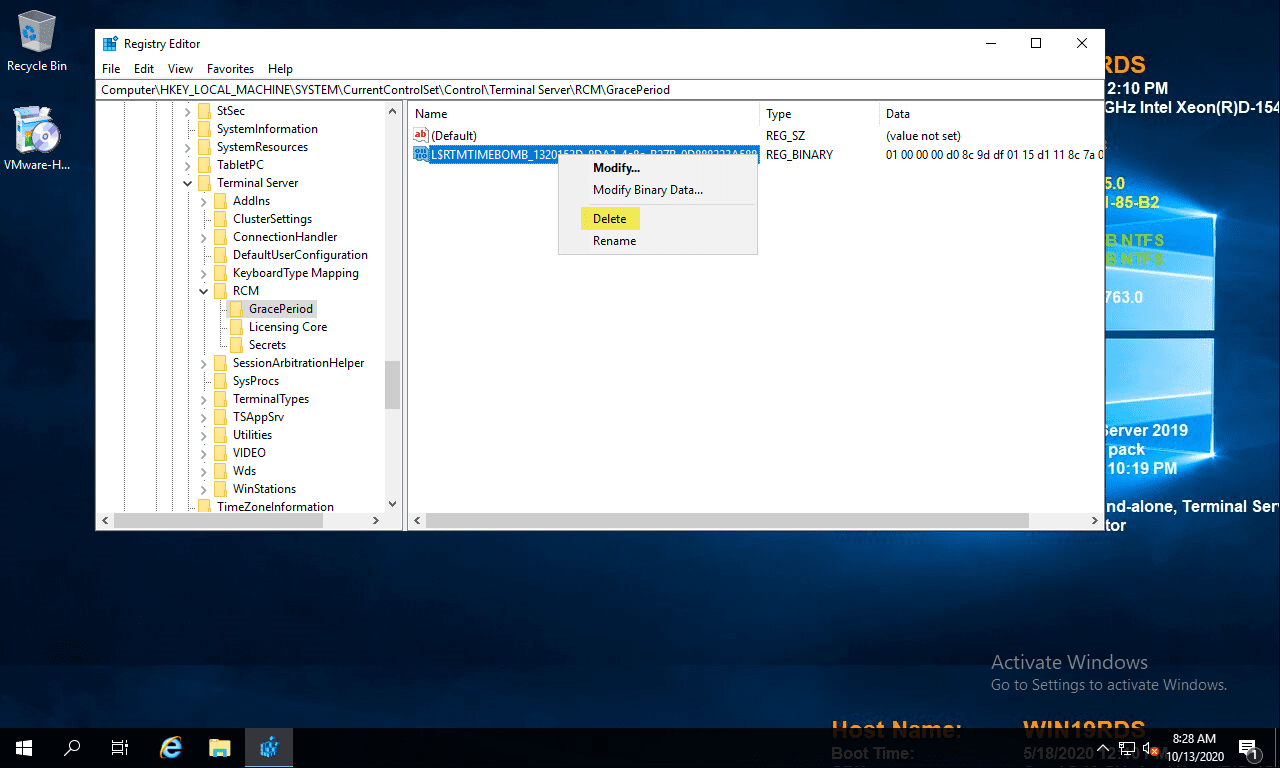
Reboot
https://www.virtualizationhowto.com/2020/10/reset-120-day-rds-grace-period-on-2016-and-2019/
 PC Paramedic-Computer Log