The NEW Sharepoint Admin Center
https://admin.microsoft.com/sharepoint?page=home&modern=true
Create new Permission Levels
- Open Sharepoint.
- Open your site.
- At the top right click settings, it is the gear

- Click “Site Permissions”
- Click “Advanced Permissions Settings”
- Click “Permission Levels”
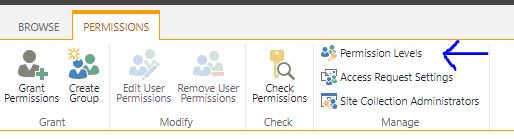
- Click “Add a Permission Level”
- Give the permission a name, description and select the permissions you want
- click Create
Create a Custom Group
- Open Sharepoint.
- Open your site.
- At the top right click settings, it is the gear
- Click “Site Permissions”
- Click “Advanced Permissions Settings”
- Click “Create Group”

- Give the Group a name, description and select the permissions you want
- Click Create
How to delete a Sharepoint Site
more on permissions
Give unique permissions to a list(directory), library, or survey
Give permissions to folders
The following site says to set separate permissions for Library and separate permissions for folders in the Library. The steps they give are not the same for office 365. https://support.office.com/en-us/article/change-the-permissions-on-a-subfolder-5427bd7c-f20a-4f75-8cf2-5359dd45a1a6
Use these steps instead.
- Navigate to the site and library
- create a folder
- click the ellipsis next to the folder name
- click Manage Access
- click Advanced
- click Stop Inheriting Permissions at the top
- For existing users, edit the permissions of those in the current list by selecting the check boxes and clicking either Edit User Permissions or Remove User Permissions.
- For new users, click Grant Permissions and fill out the dialog box. Make sure you click Show options and select the appropriate permission level.
Sharepoint VBA
https://stackoverflow.com/questions/12217680/open-sharepoint-excel-files-with-vba
vba check if folder exist
https://bettersolutions.com/vba/functions/dir-function.htm
vba Make folder
https://bettersolutions.com/vba/functions/mkdir-statement.htm
OneDrive Sync
https://docs.microsoft.com/en-us/sharepoint/let-users-use-new-onedrive-sync-client
Silently Configure OneDrive
https://docs.microsoft.com/en-us/onedrive/use-silent-account-configuration
The Ultimate Guide to Microsoft Teams Permissions
Creating a Sharepoint Page vs a sub-site
https://technologyblog.rsmus.com/it-infrastructure/sharepoint-create-page-vs-sub-site/
Sharepoint Security
https://www.varonis.com/blog/sharepoint-security/
Access People and Groups
- go to your site and click Settings
- Site Permissions
- Advanced Permissions Settings
- Create Group
- at top click “People and Groups”
- at left, at top of tree, click Groups
How-tos for SharePoint Development
https://docs.microsoft.com/en-us/sharepoint/dev/general-development/how-tos-for-sharepoint
 PC Paramedic-Computer Log